

 Wear OS
 Samsung Galaxy Watch
Important: Android clock widgets are available only with select DialCraft Studio releases. Each Google Play listing determines what is included, the price (if any), and which devices are supported.
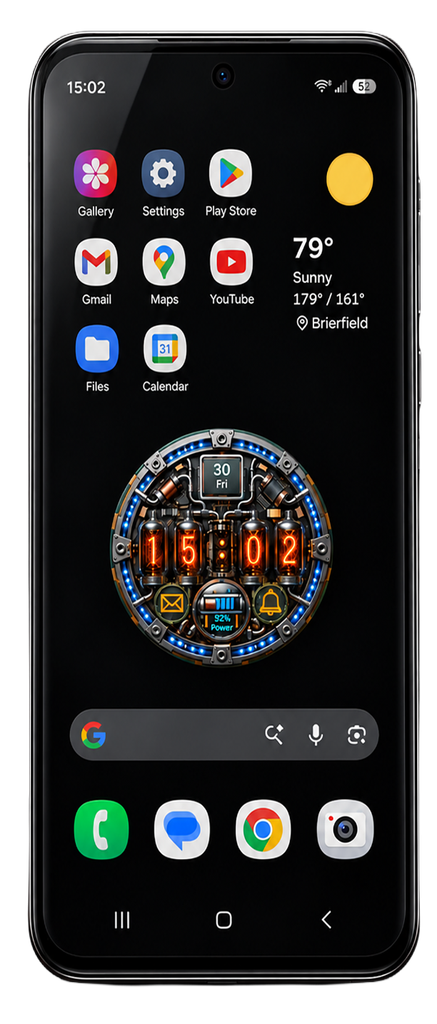
No smartwatch required
Supported Android clock widgets work directly on compatible phones, independently of a Wear OS watch.
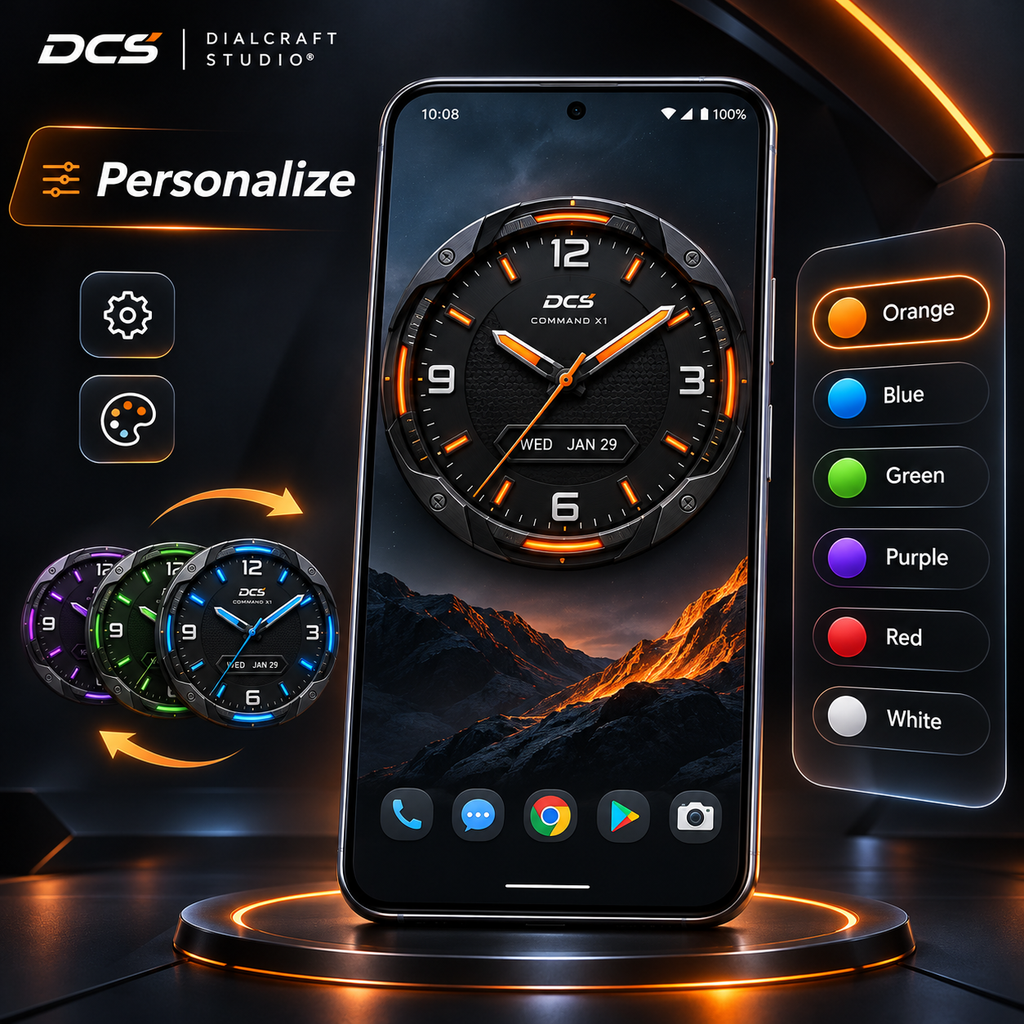
Personalize your clock
Some designs offer selectable color themes, weather settings, and other options in the phone app.
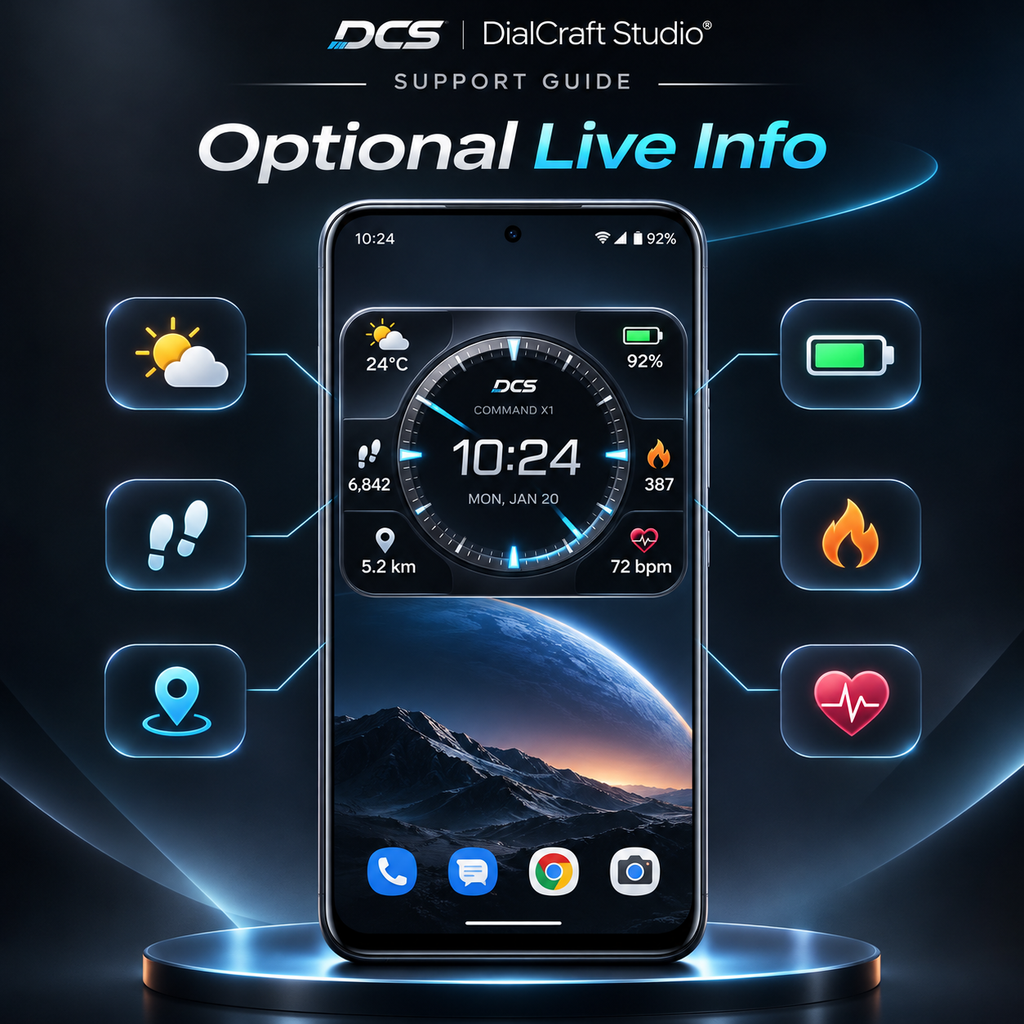
Optional live information
Depending on the widget and your phone, weather, battery, steps, distance, calories, or heart-rate readings may be available.
Quick start: Add your Android clock widget
- On your Android phone, install a DialCraft Studio app that specifically includes an Android clock widget from its Google Play listing.
- Open that app once. If available, configure a color theme and weather location, and grant only the permissions needed for the features you want.
- Return to your phone’s home screen. Touch and hold an empty space, then select Widgets.
- Find the corresponding DialCraft Studio clock widget. Touch and hold it, then drag it onto your home screen (or use your launcher’s Add control).
- If the full circular clock does not fit, touch and hold the widget and resize it to a larger square area.
- For weather or fitness data, return to the DialCraft app and select its refresh option, if provided.
Widget menus differ slightly on Samsung One UI, Google Pixel Launcher, Motorola, OnePlus, and other Android home screens. Google’s Android widget instructions show the general process.
Installing and resizing the widget
Install from Google Play
Look for wording such as “Android clock widget included” in the product listing. Some DialCraft products include both a phone component and a Wear OS watch face; others may not have a phone widget. Installing the watch face alone does not automatically place a widget on your phone.
Samsung Galaxy phones
- Touch and hold an empty part of the home screen.
- Choose Widgets, find the DialCraft app, and choose the available clock widget.
- Place it on a home-screen page with sufficient room and resize it as needed.
Google Pixel and other Android phones
- Touch and hold an empty part of the home screen and choose Widgets.
- Browse or search for the installed DialCraft widget.
- Drag it onto the home screen and adjust the size if your launcher permits resizing.
Tip: For a detailed round face such as DCS Command X1, a large square widget area usually provides the best readability. Launcher padding, screen density, font settings, and grids can change its apparent size.
Customize colors and settings
- Open the corresponding DialCraft Studio phone app.
- Find the Clock Widget or widget settings section (the wording varies by release).
- Select an available color theme and set the weather location, if supported.
- Save the change or use Refresh, when offered. Check the home screen for the new appearance.
DCS Command X1: Supported versions include multiple color themes. The Android widget’s color setting is separate from the Wear OS watch face’s color settings. Nixie Atlas Volt 2: Its phone widget uses its own supported options; not every widget offers color themes.
Fonts, animations, visual effects, and data sources may differ from the matching watch face. These differences are normal consequences of how Android home-screen widgets work.
Weather setup and updates
Supported widgets may display temperature, forecast high and low, weather conditions, rain probability, or day/night imagery. Weather requires an internet connection and a configured location.
- Open the DialCraft app and find its weather-location setting.
- Enter a city or supported location format, or coordinates if offered, then tap Set weather location.
- Check the status message confirming that a location was accepted.
- Tap Refresh if available. Allow time for the forecast to load.
DCS Command X1 uses forecast information from the U.S. National Weather Service for supported U.S. locations and MET Norway for international coverage or fallback. Forecasts are cached to limit network activity. Its displayed values may not match another app that reports a nearby weather-station observation.
Weather not updating? Confirm that the location is set, check connectivity, use the app’s refresh control, and review any provider status message. Android may postpone background updates to conserve power.
Steps, heart rate, calories and distance
Fitness information is optional. A compatible health or fitness source must actually record data before a widget can display it. Not every Android phone has the same sensors or services.
Steps, calories and distance
DCS Command X1 can obtain daily steps from supported phone sensors or compatible Health Connect data. If steps are available, some releases estimate calories and walking distance from the step count. Estimated calories and distance are not direct measurements and may differ from fitness-app totals.
Heart rate through Health Connect
- Open the DialCraft widget settings and choose the Health Connect permission option, if offered.
- Grant the DialCraft app Read Heart Rate permission (and Read Steps if you want that feature).
- In Health Connect, open App permissions for the app that measures your heart rate—for example, Samsung Health—and allow it to write/share Heart Rate.
- Take a fresh measurement using your supported watch or health app, then allow time for it to synchronize.
- In Health Connect, check Data and access → Vitals → Heart rate (menus vary) to confirm that a reading actually exists.
- Return to the DialCraft app, choose Read Health Connect now or its equivalent, and inspect the widget.
Important: Permission alone does not create heart-rate data. The measuring app must write a reading into Health Connect. Heart rate can be delayed, and a widget may show — if no valid recent reading is available. Phone widgets are not continuous medical heart-rate monitors.
Health Connect is built into Android 14 and newer; older versions use a separate Health Connect app where supported. The current Command X1 widget’s Health Connect reader is designed for Android 14 and newer; other widget releases may have different requirements. Learn about Health Connect.
What works on different Android phones?
- Clock and date: Generally available on supported Android home screens; exact font rendering and sizing may vary.
- Color options: Available only on widgets that include theme customization.
- Battery: Usually shows the phone’s battery, not the smartwatch’s battery.
- Weather: Needs a valid location and data connection; refreshes depend on network and Android background restrictions.
- Steps: Requires a compatible step sensor or an available Health Connect data source and permission.
- Heart rate: Requires a compatible measurement source, synchronized Health Connect records, supported Android version, and permission.
- Always-on animations: Phone home-screen widgets can display differently from Wear OS and may not support the same animation or update frequency.
Phone brands: DialCraft Android clock widgets are intended for compatible Android phones, not only Samsung devices. Actual behavior depends on Android version, launcher, device capabilities, and the specific product. iPhone and iOS are not supported by these Android widgets.
Troubleshooting common problems
I installed the app but cannot find the widget.
Open the app at least once, return to the home-screen widget picker, and look under the app or widget name. Confirm the installed product actually includes a phone widget. Restarting the phone may help if a newly installed widget does not appear.
Part of the circular clock is cut off.
Resize the widget to a larger square area and make room around it. Some launchers add invisible padding. Try a different home-screen grid or page. Include a screenshot and phone model in a support request if clipping persists.
The clock appears but the time is wrong or not advancing.
Check the phone’s date, time zone, and automatic time settings. Open the widget app and refresh if available, then restart the launcher or phone if the clock remains frozen. Android can delay some updates.
My color theme did not change.
Make sure that particular widget supports themes. Save the selection in the DialCraft app and return to the home screen. Use Refresh if supplied. Wear OS theme changes do not automatically change the phone widget.
Weather says it is not yet fetched, or shows dashes.
Confirm the weather location and an internet connection. Tap the app’s refresh action, read any weather-provider status message, and try again. The initial forecast requires a successful provider request.
My step count is blank or different from the watch.
Grant Physical Activity/step or Health Connect permissions when requested. Make sure a phone sensor or data source is producing steps. The phone, watch, and connected apps may count differently and may sync at different times.
Heart rate shows — even though my watch measures it.
Check both sides in Health Connect: the measuring app must have permission to write Heart Rate, and DialCraft must have permission to read it. Verify an actual entry appears under Vitals/Heart rate. Then take a new measurement, sync the source app, and refresh the widget. Some widgets or Android versions do not support this feature.
The widget uses battery or data in the background.
Widget data updates may use the network and background processing. Weather is cached when supported, and Android may delay refreshes to save power. Reduce optional data features or remove the widget if you prefer fewer background updates.
The phone widget does not match the Wear OS watch face exactly.
Phone and watch interfaces have different display rules, fonts, sensors, APIs, and battery limits. The Android widget is a companion design, not a guaranteed pixel-for-pixel duplicate of the watch face.
Frequently asked questions
Do I need to own a smartwatch?
No. A DialCraft Studio Android clock widget can run independently on a compatible Android phone when that specific product includes a phone widget. A watch is only needed to use its Wear OS face.
Can I get a phone widget without paying for a watch face?
Some DialCraft releases may be free, while others are paid. You can use a supported phone widget without owning a smartwatch, but the exact availability and price depend on the Google Play product listing. Not every free watch face includes a clock widget.
Is the phone widget a separate purchase?
That depends on the product listing. If the phone widget is included with an app, it normally comes with that app. Always read the listing’s included features, pricing, and compatible devices before purchasing.
Does the widget control my Wear OS watch face?
Generally no. Clock widget themes and phone data are managed on Android. The Wear OS watch face usually has its own customization controls on the watch or in a compatible manufacturer app.
Will it work offline?
The clock and date can work without internet access. Weather needs a network connection to obtain new forecasts. Fitness readings depend on the available phone sensors, permissions, and synchronization source.
Are heart-rate readings live?
Not necessarily. Heart-rate records are taken from the available health data source and may be delayed or unavailable. They are for general wellness display, not diagnosis, treatment, or emergency monitoring.
Still need help?
Contact DialCraft Studio with the widget/app name, phone manufacturer and model, Android version, and a short description of the issue. A screenshot of the widget and relevant settings usually helps. If the issue concerns Health Connect, describe which permissions are enabled and whether the source app has stored a reading. Please hide any private health details you do not want to share.
Use our Contact Support form, or return to the DialCraft Support Center. For watch-specific installation and customization, see the Companion App Guide and Wear OS Installation Guide.
Compatibility notice: Widget appearance and functionality may differ from the corresponding Wear OS watch face due to Android versions, launcher layouts, fonts, sensors, permissions, background update restrictions, and available data services. Features vary by product and device.